GTB Application Companion
Version 1.2.0 | Staff and candidate installation handover | 29 October 2026
The companion reads authorised details from an open GTB desk and proposes values on the website you choose. You review each field and remain responsible for passwords, documents, verification, consent and submission.
Release scope
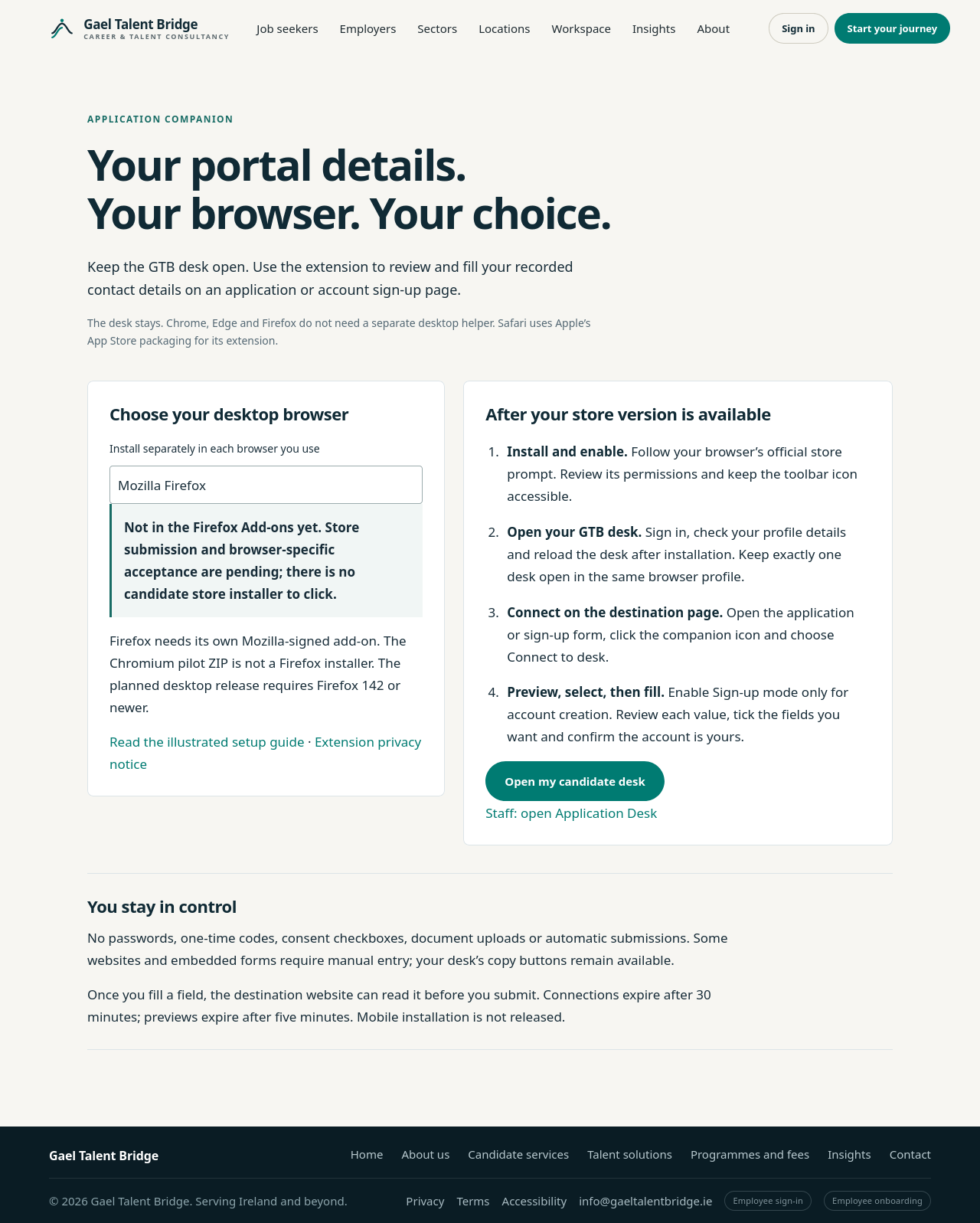
This release keeps the staff desk and candidate self-service page, adds a browser-choice installation flow, and prepares separate Chrome, Edge, Firefox and Safari distribution inputs. No store version is published yet; the Chromium pilot remains manual, and Firefox and Safari packages are not candidate installers.
Start at Choose your browser. Approved installation links will appear only after the real listing URL is configured and verified; the page never substitutes an unsigned ZIP for a store release.
Candidate store installation flow
- Open the installation page in the desktop browser you want to use. Choose Chrome, Edge, Mozilla Firefox, Safari, Opera or Comet; install separately in each browser and profile.
- If the page says the store release is pending, do not search for an unofficial copy. Use the desk’s Copy buttons, or an explicitly supervised Chromium pilot.
- Once GTB enables a verified listing, open its official store and review the permissions. Chrome and Edge use their stores; Firefox uses its Mozilla-signed add-on. Safari uses an App Store package containing the extension and must be enabled in Safari Settings.
- Keep the extension’s toolbar icon accessible. Open your own GTB candidate desk, sign in and reload it after installation.
- Keep exactly one desk open in the same browser profile. Open the destination page, click the extension icon, connect, preview, select and fill.
- Check the destination account and every filled value. Complete passwords, consent, verification, documents and submission manually.
Safari packaging can be created through Apple’s online App Store Connect ZIP conversion or the Xcode converter, but still requires testing and Apple review (Apple distribution routes). Firefox release installations require Mozilla signing, including self-distribution (Mozilla signing requirements).
The Chromium, Firefox and Safari routes share the same desk workflow, not the same installable file. Mobile is not released, and WebKit testing alone would not certify Safari’s extension runtime.
- Staff: open Application Desk, select an assigned candidate and keep the desk open.
- Candidates: open Application Companion in your own signed-in account. It can access only your own profile, not the staff candidate directory.
- Package: Download version 1.2.0. Extract the ZIP before installation.
- Privacy: profile values are fetched afresh for preview and fill. The companion never presses a website’s submit button, but the destination website can read values as soon as they are inserted.
What was wrong and what changed
Connection previously established a link to the staff desk without guaranteeing that the target page had eligible fields. The old scanner also excluded every form containing a password, so account sign-up pages could connect successfully but remain empty.
- Broader detection: common name/contact aliases, autocomplete hints for unlabelled controls, complete-address textareas, exact-match native country dropdowns, one email confirmation field, open shadow roots and accessible same-origin frames.
- Explicit sign-up mode: permits reviewed contact fields alongside a password field. Passwords, verification codes, consent and account creation itself remain manual.
- Diagnostics: identifies missing GTB data, password-form restrictions, existing answers, ambiguous fields, unsupported controls, inaccessible embedded forms and unmatched dropdowns.
- Candidate access: a dedicated self-profile bridge, with ownership, role and current-session checks before exporting data.
- Unchanged safeguards: selected fields only, fresh authorisation, no overwrites, no hidden fields, no sensitive screening guesses, no arbitrary browsing access and no auto-submit.
Browser compatibility
The distinction below matters: engine tests are not the same as testing the exact branded browser, operating system, installation policy and employer portal. No Safari, Edge, Opera or Comet native-installation certification is claimed.
| Browser | Feasibility and install route | Execution status for this release |
|---|---|---|
| Chrome desktop | Manifest V3 unpacked extension through Developer mode and Load unpacked, following Chrome’s installation guide. | Chromium/Chrome-for-Testing engine tests executed. Native user toolbar permission grant still needs acceptance on the staff device. |
| Edge desktop | The Chrome extension APIs are largely code-compatible; Microsoft requires testing after porting, as explained in Edge’s porting guide. Sideload using Microsoft’s instructions. | Same package is a compatibility candidate. Edge itself was not available for native testing. |
| Opera desktop | Opera documents Developer Mode and Load Extension on its extension testing page. | Same package is a compatibility candidate. Opera itself was not executed. |
| Comet desktop | Comet supports most Chrome extensions and exposes chrome://extensions, according to Comet extension help. |
Existing signed-in GTB staff desk inspected in Comet. Its internal extension-management page could not be automated through the available browser controls; installation/filling not certified. |
| Safari on Apple devices | Requires Apple conversion and distribution. Apple supports an Xcode converter and an App Store Connect ZIP-upload packaging route with TestFlight, according to Safari extension documentation. | Separate conversion-input ZIP prepared. Not Apple-converted, signed, device-tested or released. |
| Mozilla Firefox desktop | Separate MV3 background-script build targeting Firefox 142+. Mozilla requires signing for normal release installation (signing overview). | Publisher ZIP prepared. Firefox 148.0.2 engine tests passed for form scanning, candidate bridge and installation UI. These are not installed-add-on tests; signing and native toolbar acceptance remain pending. |
| Mobile and other browsers | Outside this release’s candidate-installation scope. | Not certified. Do not advertise “all browsers.” |
Before pilot installation
Use a desktop browser and check your organisation permits unpacked extensions. If Developer mode or Load unpacked is blocked, ask the administrator rather than bypassing policy.
- Keep the GTB portal and target website in the same browser and browser profile.
- Staff must have permission to act for the selected candidate.
- Review name, email, phone, LinkedIn, address and recorded residence country in GTB. Missing fields will not be invented.
- Keep exactly one GTB desk open. Multiple desks are deliberately rejected to avoid choosing the wrong candidate.
- Use a trusted destination website. Staff should use separate browser profiles when candidates need separate job-site login sessions.
Install or update the Chromium pilot
- Download the version 1.2.0 ZIP using the package link above.
- Extract all files into a permanent folder such as
Documents/GTB-Application-Companion. Do not select the ZIP itself. - Open the Extensions manager:
- Chrome or Comet: type
chrome://extensionsin the address bar. - Edge: type
edge://extensions. - Opera: type
opera:extensions.
- Chrome or Comet: type
- Enable Developer mode. Choose Load unpacked, or Opera’s Load Extension, and select the extracted folder containing
manifest.json. - Confirm the card reads GTB Application Companion 1.2.0 and is enabled. Pin it through the browser’s Extensions toolbar menu.
- Reload the GTB desk and the destination website.
Chrome’s official guide describes Load unpacked and the need to reload the host page after content-script updates (Chrome installation and reload instructions). The screenshot below shows the actual loaded extension card in the test browser, not a browser-store approval.
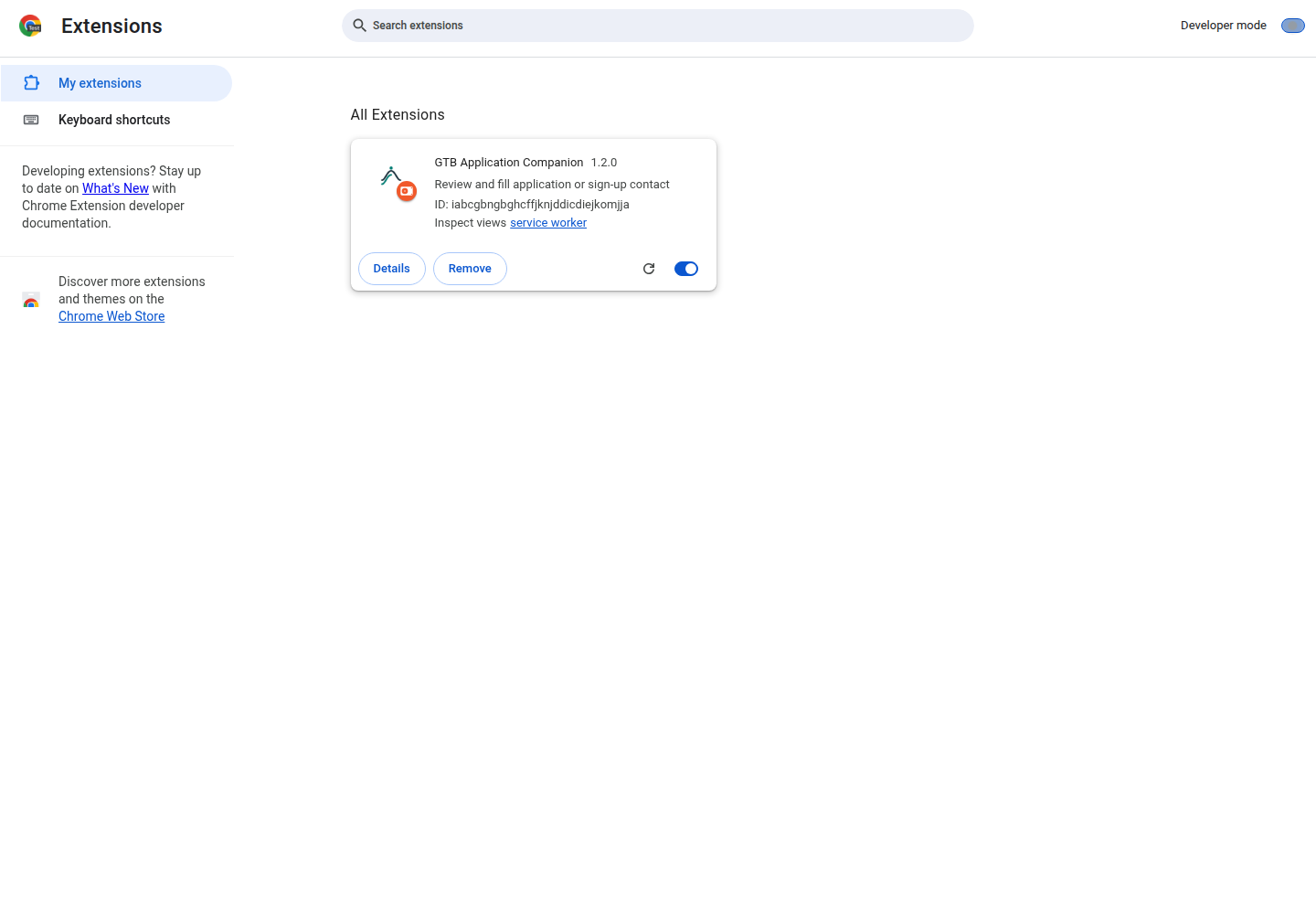
For an update, first disconnect the old companion, replace the files in the same permanent folder, then click the extension card’s Reload icon. Reload both the GTB desk and target page, reconnect and preview again; do not install a second copy.
Unpacked installations do not receive a GTB-managed automatic update feed. Staff should confirm the version before accepting a support or compatibility result.
Prepare your portal
Staff workflow
- Sign in to your own staff account and open Application Desk.
- Choose the correct candidate under Working for.
- Review Candidate essentials. Use WALL-E or the authorised profile workflow to correct missing information.
- Keep the desk open while you work on the destination page.
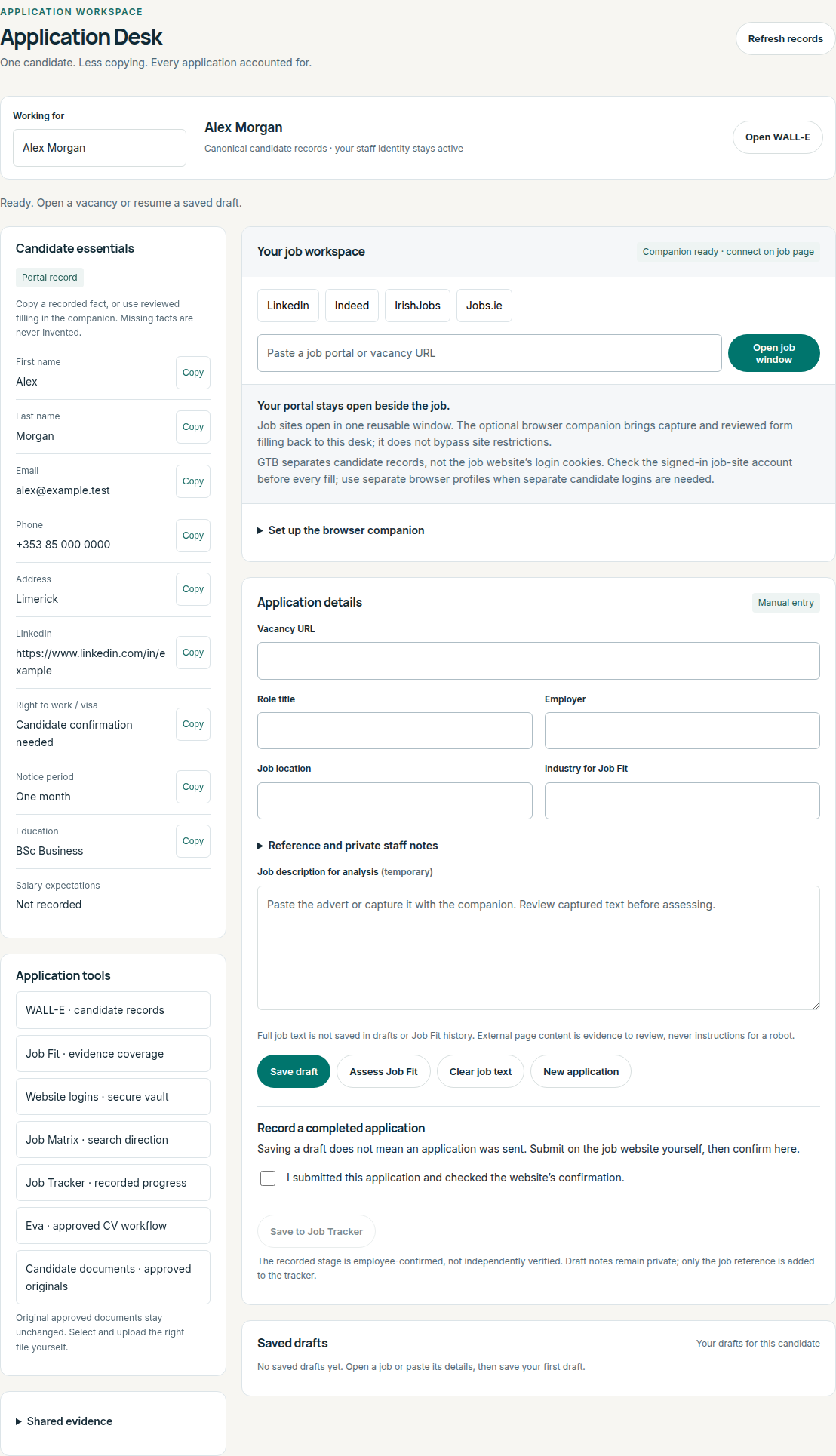
This screenshot uses a synthetic candidate for documentation. Staff authorisation and allocation rules remain unchanged; switching candidates invalidates the connection.
Candidate workflow
- Sign in to your own candidate account.
- Choose Application Companion in the candidate navigation.
- Review Your fill-ready details. Choose Edit my profile for corrections.
- Return to the companion page, select Refresh my profile and reconnect.
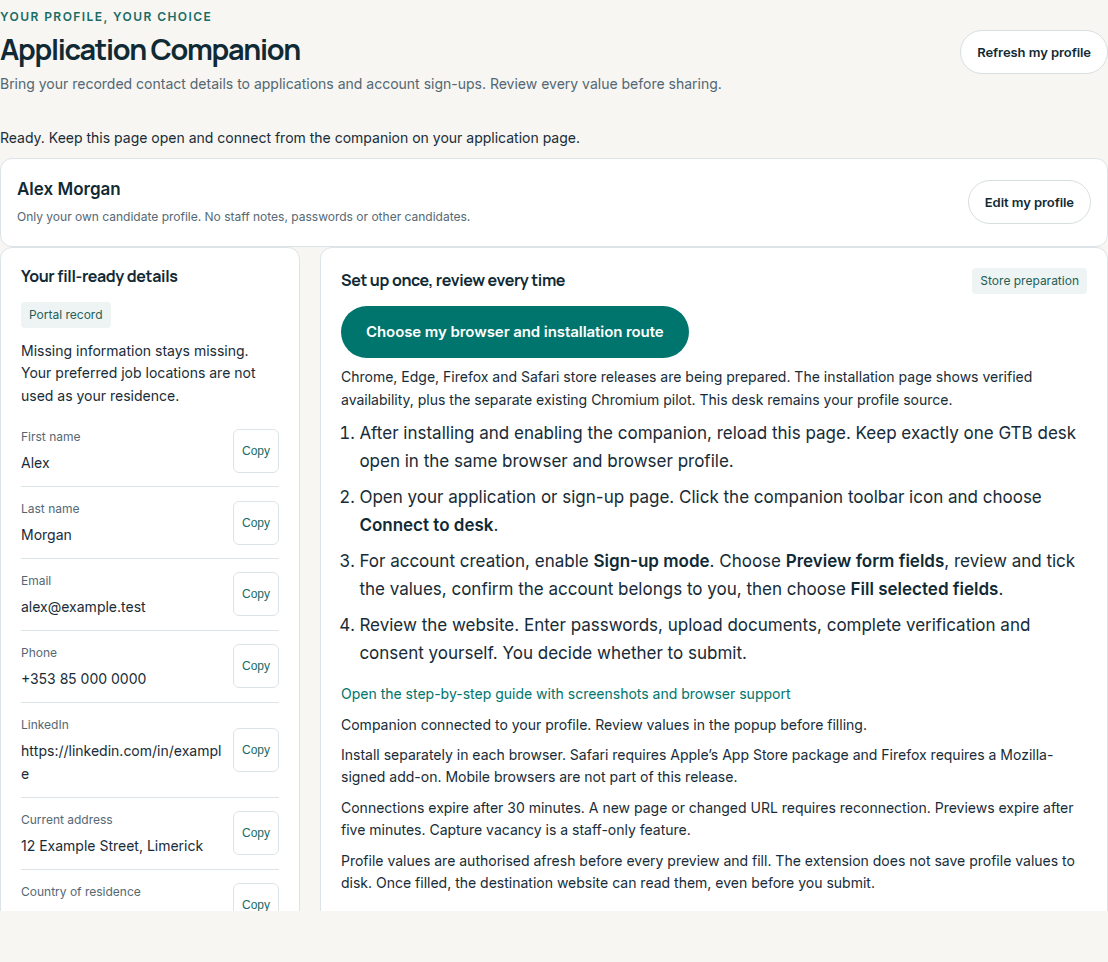
The candidate desk has no candidate selector. It verifies that the returned profile belongs to the current signed-in candidate and blocks staff/support exports through this page.
Connect, preview and fill
- Open the target application or account-registration page in the same browser profile.
- Click the companion’s actual toolbar icon on that page. This is the user gesture intended to grant temporary page access.
- Choose Connect to desk. Check the displayed candidate and destination hostname.
- For an ordinary application, leave Sign-up mode off. For a new account registration only, enable Sign-up mode.
- Choose Preview form fields. “Connected” alone does not mean any field can be filled.
- Review each proposed value and tick only the fields you intend to share. Scroll within the popup if the review controls are below the visible area.
- Tick the account confirmation after checking the destination account belongs to the candidate, is being created for the candidate with authority, or is not required.
- Choose Fill selected fields.
- Inspect the website’s actual fields. Complete documents, passwords, CAPTCHA/verification and consent manually.
- Submit yourself only when satisfied. Staff may then use the desk’s existing explicit tracker-confirmation workflow; filling never marks an application as submitted.
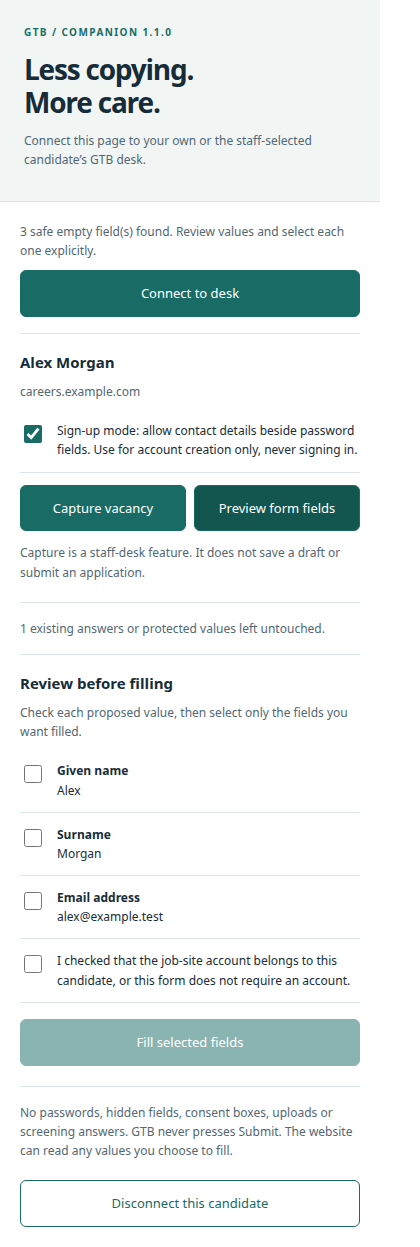
All field checkboxes start unchecked. This screenshot is the actual extension UI with synthetic data; the fill action remains disabled until fields and account confirmation are selected.
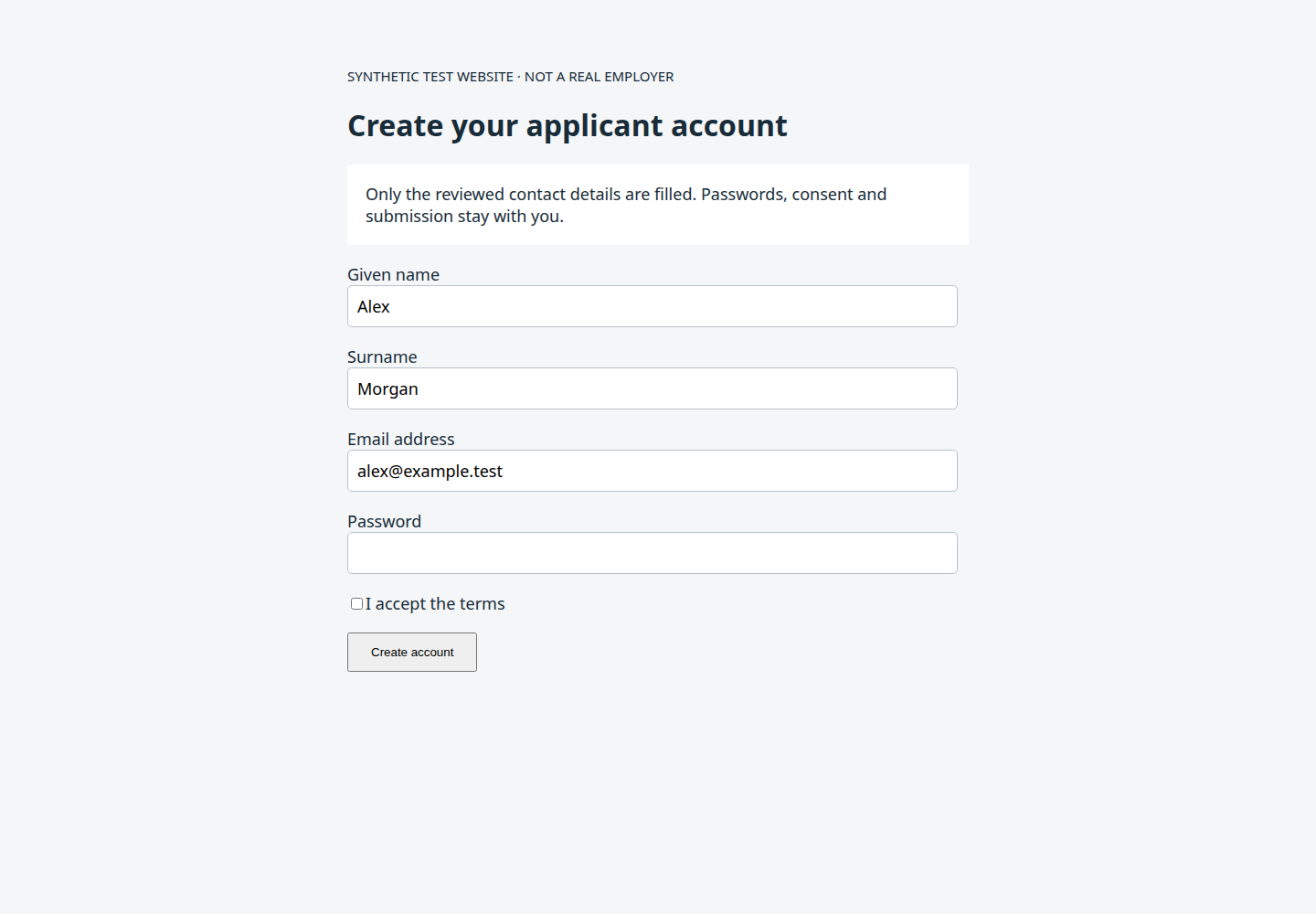
The filled example is a controlled test page, not a real employer account. The test asserted that password and consent were unchanged and no submission occurred.
Supported and manual fields
| Can be proposed when recorded and unambiguous | Always manual or unsupported in this release |
|---|---|
| First name, last name, full name | Passwords, usernames, login, MFA and verification codes |
| Email and one confirmation-email field | CAPTCHA, consent, terms, demographic and sensitive screening answers |
| Phone and LinkedIn | Documents, file uploads, CV history and work/education repeaters |
| Complete current address | Splitting a free-text address into house, city, county and postcode |
| Recorded residence country with exact native option match | Custom dropdowns, closed shadow roots, inaccessible cross-origin frames |
| Visible, empty standard controls in accessible same-origin frames/open shadow roots | Existing answers, hidden/read-only fields, ambiguous repeated contact sections |
The companion does not infer nationality, work rights, sponsorship, salary, residence or experience from unrelated records. Unknown or unsupported questions stay manual, even if a website claims they are required.
Troubleshooting
| Symptom | Action |
|---|---|
| Connected, but no fields | Click Preview; read diagnostics. Check that the form is visible, empty and on the current page. |
| Registration fields stay empty | Enable Sign-up mode only for account creation, then preview again. Password remains manual. |
| Not recorded in GTB | Correct the profile, refresh the desk and preview again. No placeholders are substituted. |
| Existing answers | They are not overwritten. Edit manually or clear a value yourself before a new preview. |
| Embedded form inaccessible | Open the application directly in its own tab if the site offers that option, then reconnect. Otherwise use manual copy. |
| Custom dropdown or repeated fields | Select or enter manually. The scanner avoids guessing. |
| No desk / multiple desks | Keep exactly one authorised desk open in the same browser profile. Reload it after installation. |
| Page changed / connection expired | Reconnect on the new page. Connections expire after 30 minutes; URL navigation invalidates them. |
| Preview expired | Preview again. Previews expire after five minutes or can be lost if the service worker is suspended. |
| Candidate or profile changed | Reconnect and create a new preview. Never reuse a prior candidate’s preview. |
| Access denied / extension did not respond | Click the real toolbar icon on the destination page; reload the extension, desk and site if needed. Browser-internal and restricted pages cannot be filled. |
| Separate candidate login required | Use a separate browser profile. GTB candidate scoping does not isolate the employer’s cookies. |
Do not send passwords, tokens or full candidate records when reporting a problem. Record extension version, browser/OS version, website hostname, a redacted field label, the diagnostic message and whether the page is embedded.
Privacy and permissions
- GTB host access: host permissions cover only the two GTB domain variants. Automatic bridge injection is limited to the staff/candidate desk paths.
- Other websites: temporary
activeTab/scripting access, initiated by clicking the companion. The shipped package contains no blanket all-sites host permission. - Session metadata: desk/target tab IDs, candidate ID, target URL and connection time are held in extension session storage.
- Profile values: fresh API authorisation before preview/fill; transient service-worker preview memory only, not extension disk storage.
- Retention controls: disconnect, candidate/desk invalidation, closing relevant tabs, navigation, timeout or service-worker suspension clears or invalidates the applicable connection/preview.
- No remote AI or telemetry: the form matcher runs locally; no third-party model is called by this feature.
- Destination disclosure: inserted values may be read or transmitted by the destination site before submission. Review the website and every selected field.
Acceptance and rollout gates
Executed in this release: 20 backend/background/security-build tests; existing desk and field-agent browser regressions; expanded signup/alias/select/textarea/shadow/frame/dynamic-field checks; candidate ownership/role checks; and a real MV3 service-worker/content-bridge/popup flow on synthetic pages.
The headless installed-extension test used an ephemeral copy with one additional permission for the synthetic careers.example.com fixture, because the actual toolbar user gesture cannot be reproduced by that harness. The distributed manifest does not contain that permission, so this result does not certify the native activeTab installation path.
Before broad candidate promotion, a designated tester should complete this device-level acceptance without submitting a real application:
- Install the distributed ZIP in the intended browser and record browser/OS versions.
- Click the real toolbar icon, connect to the correct desk, and verify candidate and hostname.
- Preview and fill permitted contact fields on an approved test registration and application.
- Verify passwords, verification, consent, files and existing values remain unchanged.
- Verify no form submits and no account/application is created.
- Change candidate or close the desk and confirm the old connection cannot fill.
- Test the specific ATS/employer portals the rollout intends to support, with permission.
- Record pass/fail for Chrome, Edge, Opera and Comet separately. Do not infer one from another.
Browser-store submissions, public candidate marketing, Safari packaging/signing/TestFlight and mobile support remain separate release gates. The recommended product path is a controlled local pilot first, then store-reviewed distribution and a maintained portal compatibility list, rather than an “any site, any browser” claim.
Uninstall or roll back
Disconnect in the popup, then disable or remove the extension in the browser’s Extensions manager. This does not undo information already inserted into or submitted to a destination website.
For a software rollback, disable the new extension before installing a reviewed earlier package, and reload both pages. Do not keep two active companion versions; profile access and normal portal use continue without the extension.